

Most likely at some point in your life you heard music that you liked a lot, but you had no way of identifying which song it was. This happens in many places, whether in memes on the internet, in soap operas, in movies... But your problems are over! Learn now how to identify songs, whether on Android and iOS smartphones, even on Windows.
Content Index
How to Identify Songs
The problem of not being able to identify a song can end up being a headache, but the process to be able to identify songs is quite simple and without complexities. Even with some of the methods to do this already being in your hands, that is, without having to install Apps and the best for free! Check out how to identify songs below on the various platforms:
Smartphones and Tablets
As stated earlier, it is possible to identify a song on both Android and iOS, and this is not limited to smartphones, but is also possible on Tablets. There are no secrets to identifying a song on these devices, and this process can be done either by downloading an application or without.
App: Shazam

A well-known application, and it's no wonder, after all it fulfills its purpose very well. Available for both Android and iOS, I'll leave the download link below. Through Shazam you only need to do one thing to identify your songs. After downloading, give permission for the application to record the sound of your device.
Once permission has been given, just tap the app logo in the center of the screen, and play the song you want to tag. But not only that, through it it is also possible to identify music in the background, that is, while using other applications.
However, it is not necessary to exactly download Shazam to discover the name of songs through cell phones and tablets, check below how:
Identify Songs on Android

To find out what the name of a song is using Android is quite simple, just using a native function of the device, the “Ok Google”. To find out the name of a song with Google, just pick up the device and say: “ok Google”"” > “What Song Is That?” or “What is this Song”. However, to discover songs like this, it is necessary that the function be active. Learn to enable and disable the OK Google command.
However, unlike the Shazam App, it is not possible to use this function while the music is playing on the cell phone, so it is necessary to use an extra cell phone in case the music is playing on the device, or use this function only for external music, for example, played on TV, Speakers, etc.
Identify Songs on iPhone and iPad
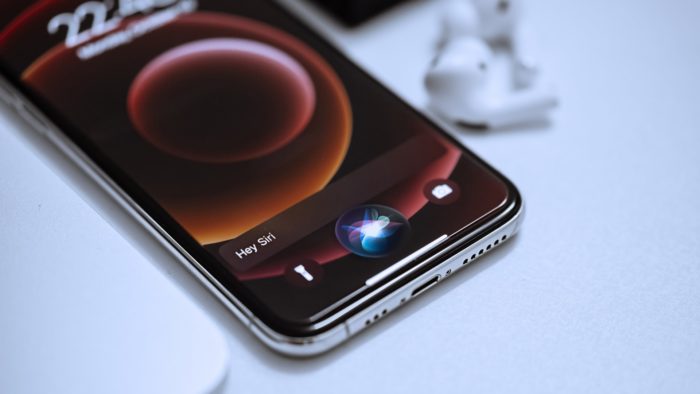
The process is exactly the same as on Android, however, instead of using “Ok Google”, the question is asked for the Crab! So, just say, Hey Siri (if the call function is active) or press the end button saying Hey Siri. Once Siri appears, ask: "What am I listening to?" or “What is this song”.
The search is done using Shazam, even if it is not installed, after all, Shazam was developed by Apple. But unlike the app, if you're searching for a song that's being played on your device, when you ask Siri, the song will automatically pause, so it won't search. Therefore, you need to use another device to identify a song, or for example play the song or video somewhere else to do the search.
Windows 10

Finally, you can also identify songs using Cortana from Windows 10. If it is active, just say: Hey Cortana, and then ask, “What song is that?” or “What is this song?”. It will search whatever it hears, be it external sound or from the computer itself, it will search using the sound captured by the microphone.
Therefore, to search for music in Windows 10, the requirement is to have a microphone, which in the case of notebooks is already built-in. To identify songs playing on the computer itself, it is necessary that the sound is coming out of a speaker, so that it is captured in the microphone.
Read too:

